Rhino Plugin
API Key
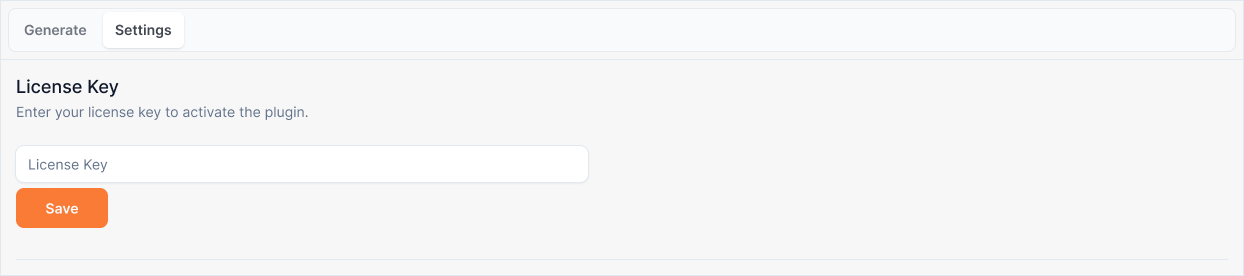
The API Key input is where you enter and save your License Key to authenticate with the FastRender service. Your License Key enables the plugin to function and allows us to track your usage.
API Key
What it is:
A text input field in the Settings tab where you enter and save your FastRender License Key. This key authenticates your plugin installation and enables access to the FastRender rendering service.
Influence and importance:
Your License Key is required to use the FastRender plugin. Without a valid key, you won't be able to generate renders. The key also allows us to track your usage, manage your account, and ensure proper service access. Once saved, your key is stored locally and will be remembered for future sessions.
What To Pay Attention To:
Enter Your Key: Paste your complete License Key into the input field. The key is typically a long alphanumeric string provided when you sign up for FastRender.
Save Your Key: After entering your key, make sure to save it. The plugin will store it locally so you don't need to re-enter it each time you use FastRender.
Keep It Secure: Your License Key is unique to your account. Keep it private and don't share it with others. If your key is compromised, contact support to regenerate it.
Usage Tracking: Your License Key is used to track your render usage and manage your account limits. All renders generated with your key are associated with your account.
How to Get Your License Key
Follow the License Key Activate Guide to get your License Key
Best Practices
When setting up your API Key:
Copy the entire key - Make sure you copy the complete License Key without any extra spaces or characters
Paste directly - Use paste (Ctrl+V / Cmd+V) rather than typing the key manually to avoid errors
Verify it's saved - After entering and saving, verify that your key is stored correctly. You should be able to generate renders without re-entering it
Keep it accessible - Store your License Key in a secure password manager or safe location in case you need to re-enter it
Contact support if issues - If you're having trouble with your License Key or getting authentication errors, contact FastRender support for assistance
One key per installation - Each Rhino installation should use its own License Key. If you're using FastRender on multiple computers, you can use the same key, but usage will be tracked together
Your License Key is your gateway to using FastRender. Make sure it's entered correctly and saved to ensure uninterrupted access to the rendering service.