Rhino Plugin
Generate
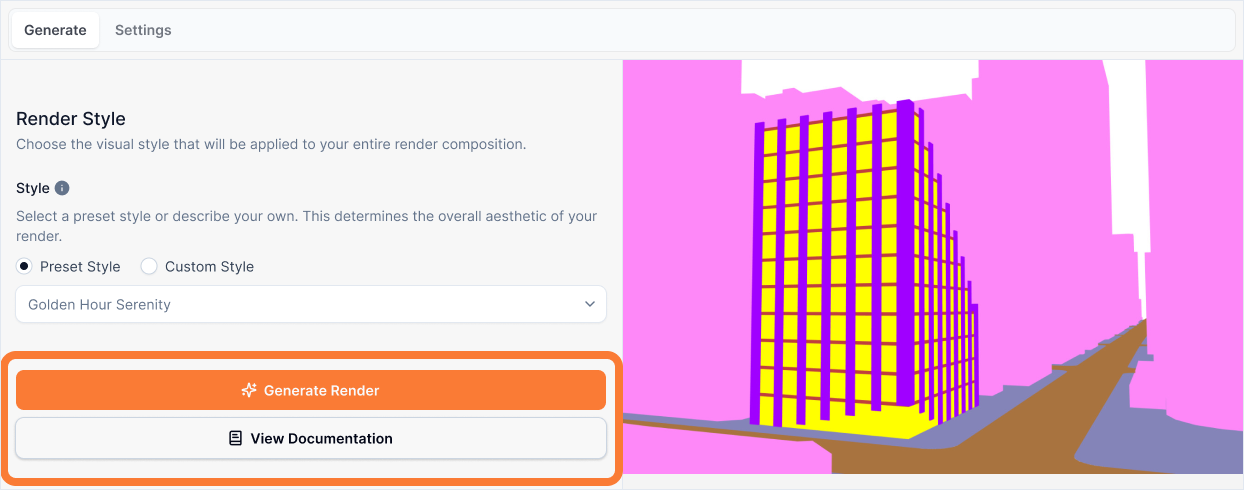
The Generate button sends all your configured settings to the AI rendering service and creates your final render. Once all your settings are set up, clicking Generate will process your request and return the completed render.
Generate Button
What it is:
The Generate button is the final step in the rendering process. Once you've configured all your settings—preview, aspect ratio, subject, scene, location, lighting, layers, and style—clicking Generate sends all this information to the AI rendering service to create your final render.
Influence and importance:
This button initiates the rendering process. All your carefully configured settings come together at this moment to create your final image. The quality of your render depends on the settings you've configured before clicking Generate.
What To Pay Attention To:
Verify Your Settings: Before clicking Generate, double-check that all your settings are configured as desired. Review your preview, aspect ratio, subject description, scene, location, lighting preset, layer descriptions, and style selection.
Processing Time: After clicking Generate, your render will be processed in the cloud. Processing typically takes a few seconds to a minute, depending on server load.
Results: Once processing is complete, your render will appear in the plugin interface and automatically be saved to your web gallery, where you can view, download, and manage all your renders.
Multiple Generations: You can generate multiple renders with different settings to explore variations and find the perfect result.
Best Practices
Before clicking Generate:
- Review your preview - Ensure your camera angle and composition are correct
- Check all inputs - Verify subject, scene, location, lighting, layers, and style are all set as desired
- Verify layer descriptions - Make sure all important layers have detailed material descriptions
- Confirm aspect ratio - Ensure the aspect ratio matches your intended use case
- Double-check lighting - Verify you've selected the right lighting preset for your shot type (exterior vs interior)
After clicking Generate:
- Wait for processing - The render will process in the cloud. You'll see a progress indicator
- Review the result - Once complete, examine your render in the plugin interface
- Access your gallery - All renders are automatically saved to your web gallery for easy access
- Iterate if needed - If the result isn't quite right, adjust your settings and generate again
The Generate button is your gateway to transforming your 3D model into a stunning AI render. Make sure all your settings are configured correctly before clicking to ensure the best results.