Rhino Plugin
Style
The Style dropdown is the master control for the overall aesthetic of your image. It defines the artistic "lens" through which your entire image will be rendered, from a realistic photograph to a hand-drawn sketch.
Style
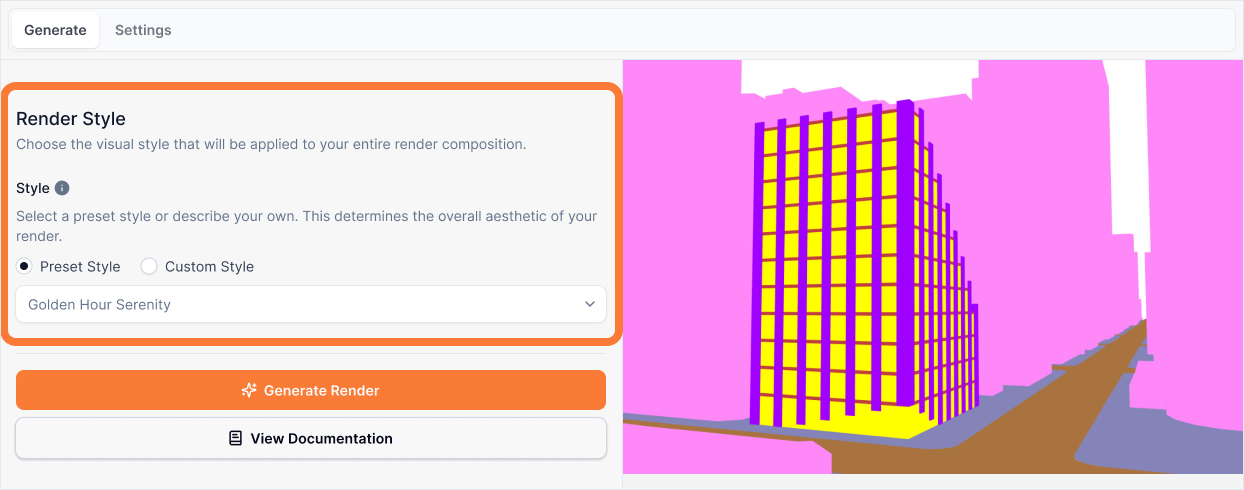
What it is:
The artistic "lens" through which your entire image will be rendered. It defines the overall aesthetic and the medium of the final output, from a realistic photograph to a hand-drawn sketch.
Influence and importance:
This is the master control for the overall aesthetic of your image. Your choice of style is a fundamental creative decision that will influence how the lighting and materials are ultimately portrayed. The same building can look completely different—from a hyper-realistic photograph to a conceptual sketch—based solely on this selection.
What To Pay Attention To:
Match Your Purpose: Choose the style that fits your goal. Select Photorealistic for final client presentations, or choose Sketch for early-stage creative exploration where the idea and mood are more important than realism.
Consider the Stage: Different styles serve different purposes. Use Diagrammatic for explaining concepts, Cinematic for dramatic presentations, and Photorealistic for final deliverables.
Custom Option: If you need a specific artistic style not covered by presets, select "Custom" and use reference images with your style description. See the Reference Images guide for using references with custom styles.
Style Affects Everything: Remember that your style choice will influence how all other inputs (lighting, materials, scene) are ultimately interpreted and rendered.
Style Presets
Choose from these professionally crafted style presets:
Photorealistic
Choose this to make your render look as real as possible, like a high-end photograph. This style is the default for final presentations and focuses on creating hyper-realistic materials, physically accurate lighting, and ultra-fine details.
Pending image
Cinematic
Choose this to give your image a dramatic, moody, and atmospheric feel, like a still from a movie. This style applies a professional color grade, enhances the atmosphere with effects like film grain, and softly blurs the background to make your building the star of the show.
Pending image
Sketch
Choose this to transform your model into a conceptual, hand-drawn architectural sketch. This style uses expressive ink lines and muted watercolor washes to interpret your design, making it perfect for early-stage creative exploration where the idea and mood are more important than realism.
Pending image
Diagrammatic
Choose this to create a clean, minimalist, and graphic diagram of your project, perfect for explaining a concept, form, or idea. This style uses flat colors and bold black outlines against a white background, and will ignore your chosen lighting template to produce a pure, abstract, and easy-to-read image.
Pending image
Custom Style
If you need a specific artistic style not covered by the presets, select "Custom" from the dropdown. When using Custom Style:
Upload a reference image that clearly displays the artistic technique you want (e.g., a charcoal sketch, watercolor painting, film still with distinct color grade)
Write a style prompt following this structure:
- [Artistic Medium] - Define the art style (e.g., "A watercolor painting," "A noir film still")
- [Reference Extraction] - Tell the AI what artistic qualities to take from the reference using "Use REF[X] as the guide for..."
- [Geometric Constraint] - Add a safety sentence to prevent geometric changes: "Apply this artistic style as a surface treatment only; do not alter the original architectural geometry or perspective"
For detailed guidance on using Custom Style with reference images, see the Reference Images documentation.
Best Practices
When selecting a style:
Match your project stage - Use Sketch or Diagrammatic for early concepts, Photorealistic for final presentations, and Cinematic for dramatic showcases.
Consider your audience - Clients often expect Photorealistic for final deliverables, while design teams may appreciate Sketch for exploration.
Think about the purpose - Diagrammatic is perfect for explaining concepts, while Cinematic creates emotional impact.
Use Custom for unique needs - If you need a specific artistic style (watercolor, charcoal, film grade), use Custom with reference images.
Remember style affects everything - Your style choice influences how lighting, materials, and scene are interpreted. A Sketch style will simplify materials, while Photorealistic will render them in detail.
Diagrammatic ignores lighting - If you select Diagrammatic, your Lighting preset will be ignored to produce a pure, abstract diagram.
The style you choose is one of the most impactful creative decisions you'll make—it determines not just how your render looks, but what it communicates.