Rhino Plugin
Preview Section
The Preview section displays your current 3D model and allows you to see the camera angle that will be captured for rendering.
Preview Section
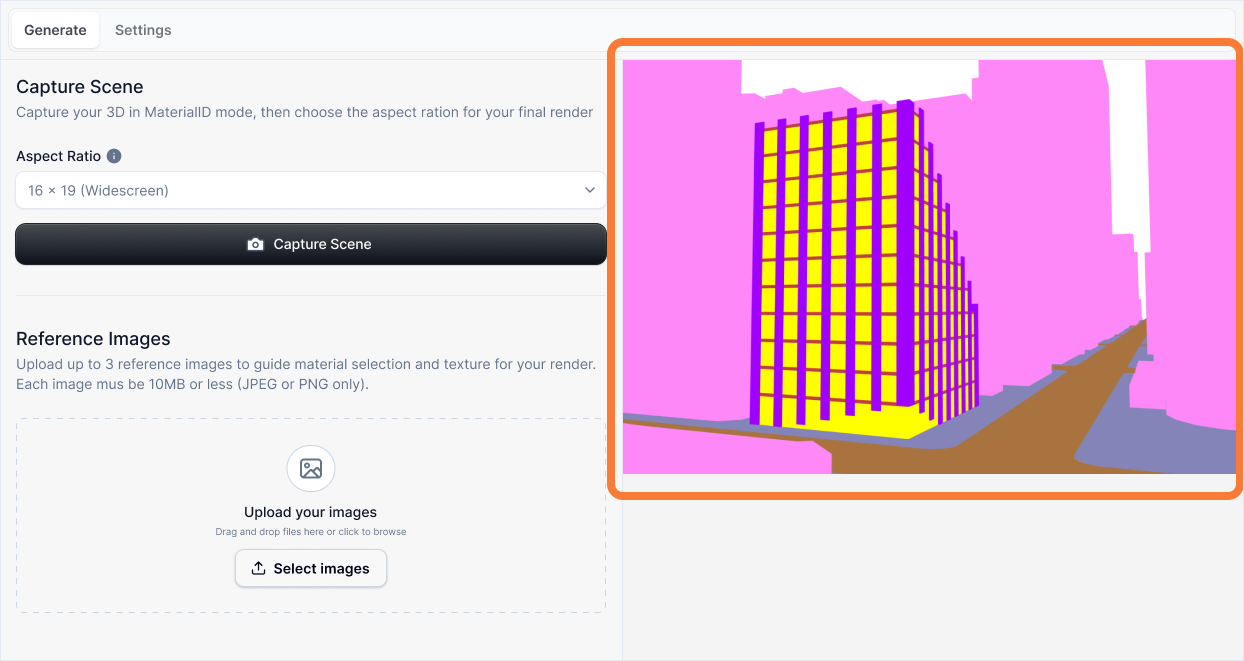
What it is:
A live preview of your current Rhino viewport that shows exactly what will be captured and sent to the AI for rendering. This is your visual confirmation of the camera angle, composition, and scene setup before generating a render.
Influence and importance:
The Preview section is your quality checkpoint. It ensures that the exact view you see in Rhino is what gets rendered, preventing surprises or unwanted camera angle changes. Always verify your preview matches your intended composition before clicking Generate.
What To Pay Attention To:
Camera Angle: Verify that the preview shows the exact viewpoint you want. Is it eye-level, aerial, or a dramatic low-angle? The preview reflects your current Rhino viewport.
Composition: Check that your subject is properly framed. Ensure important architectural features are visible and centered as intended.
Scene Visibility: Confirm that all the layers and elements you want included in the render are visible in the preview. Hidden objects in Rhino won't appear in the final render.
Aspect Ratio Match: The preview will update to match your selected aspect ratio, giving you an accurate representation of the final image proportions.
Best Practices
Before generating a render, always:
- Adjust your viewport in Rhino to your desired camera angle
- Check the preview to confirm it matches your vision
- Verify layer visibility to ensure all necessary elements are shown
- Select your aspect ratio and confirm the preview updates accordingly
The preview updates automatically as you change your Rhino viewport, so you can experiment with different angles and compositions before committing to a render.