Reference Images
Reference images are an optional but powerful tool that allows you to give the AI specific visual guidance for materials or artistic styles.
Reference Images
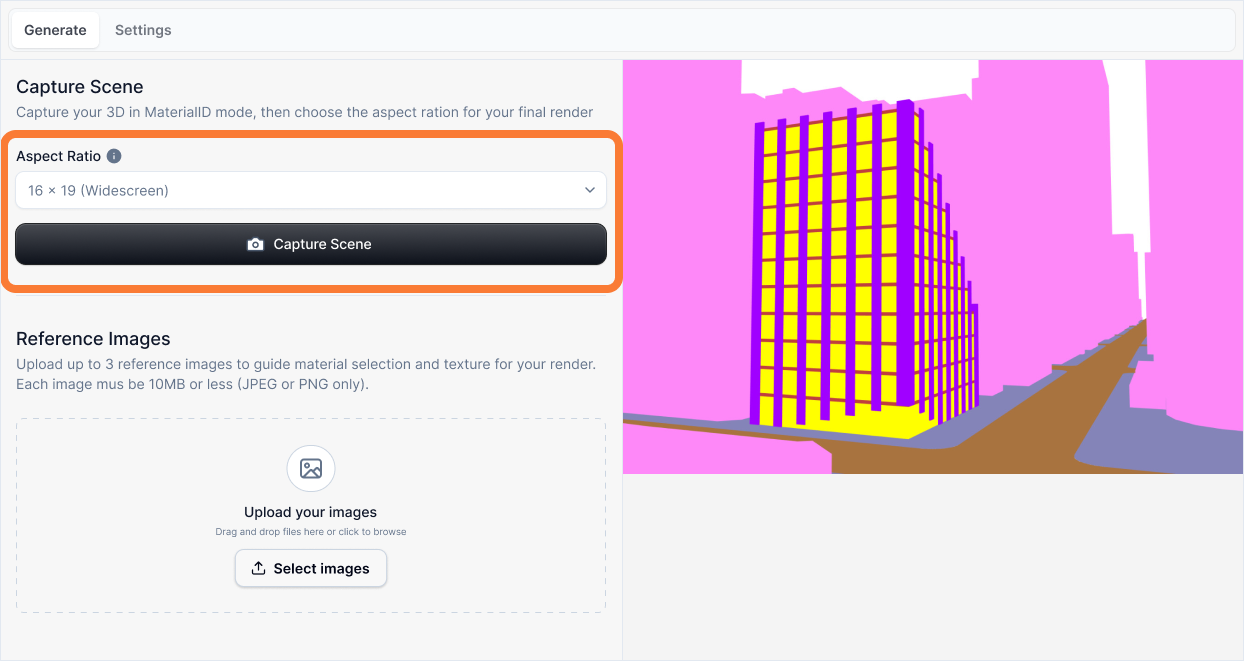
What it is:
Reference images (e.g., REF1, REF2) are photos or texture samples you upload to guide the AI's rendering. You can use them in two distinct ways:
- As a Material (Layer Description): To define the exact texture of a specific surface (e.g., a specific wood grain for the floor) ()[]
- As a Style (Custom Style): To define the overall artistic look of the entire image (e.g., a specific painting style or film grade)
Influence and importance:
Reference images provide precise visual guidance that text prompts alone cannot convey. They help the AI understand exact textures, color palettes, and artistic techniques. However, to get consistent results, your reference image must have one, and only one, job—the AI gets confused by mixed messages.
The Golden Rule: Your Reference Must Be a Pure Signal
To get consistent results, your reference image must have one, and only one, job. The AI is powerful, but it gets confused by mixed messages.
For Materials: If you want a wood texture, do not provide a photo of a whole room. The AI might try to put the furniture from the photo onto your floor.
For Styles: If you want a watercolor style, do not provide a photo of a different building. The AI might try to morph your building into the shape of the building in the photo.
What To Pay Attention To:
Choose the Right Purpose: Decide whether your reference is for a material texture or an artistic style—never both in one image.
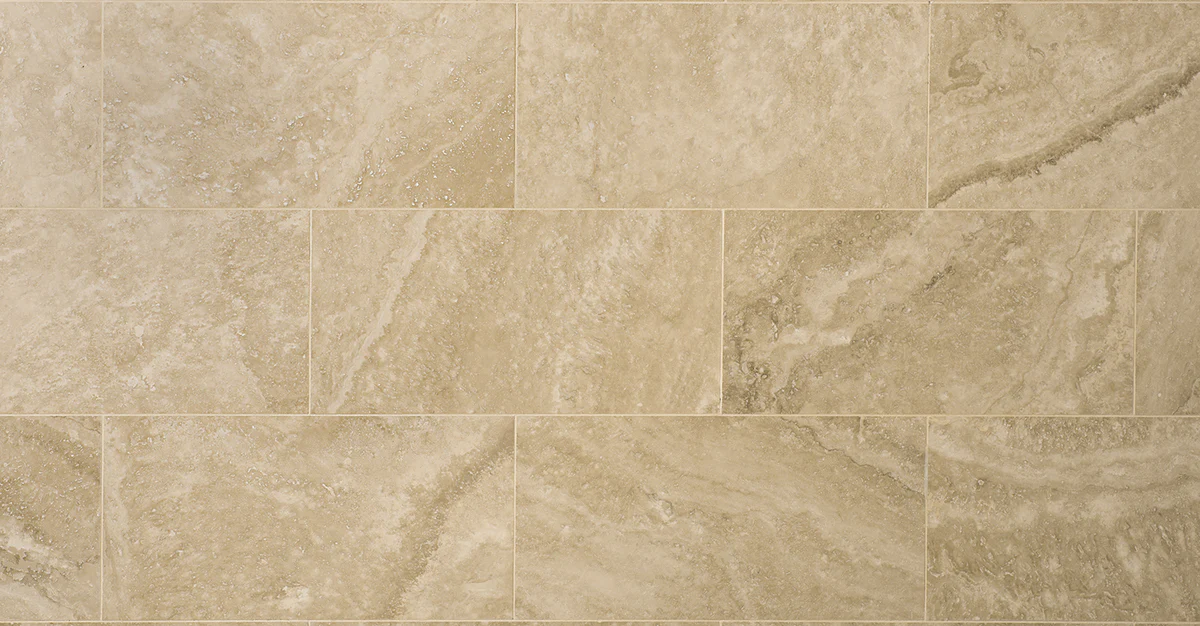
Material References: Use texture swatches shot flat-on with even lighting, tightly cropped to show only the material. Avoid perspective distortion or other objects in frame.
Style References: Use images that clearly display an artistic technique (charcoal sketch, watercolor, film grade), not photos of buildings that might confuse the AI about geometry.
Image Quality: Use high-resolution images (1000-2000 pixels on longest side) in JPG or PNG format, under 2 MB.
Using References for Materials (Layer Description)
When you want to apply a specific texture to a surface in your model, use reference images in your layer descriptions. learn more about layers
What Makes a Good Material Reference
Your reference should be a texture swatch, not a photograph.
✅ Good Material References
- Shot flat-on (top-down view)
- Even, consistent lighting
- Tightly cropped to show only the material
- No perspective distortion
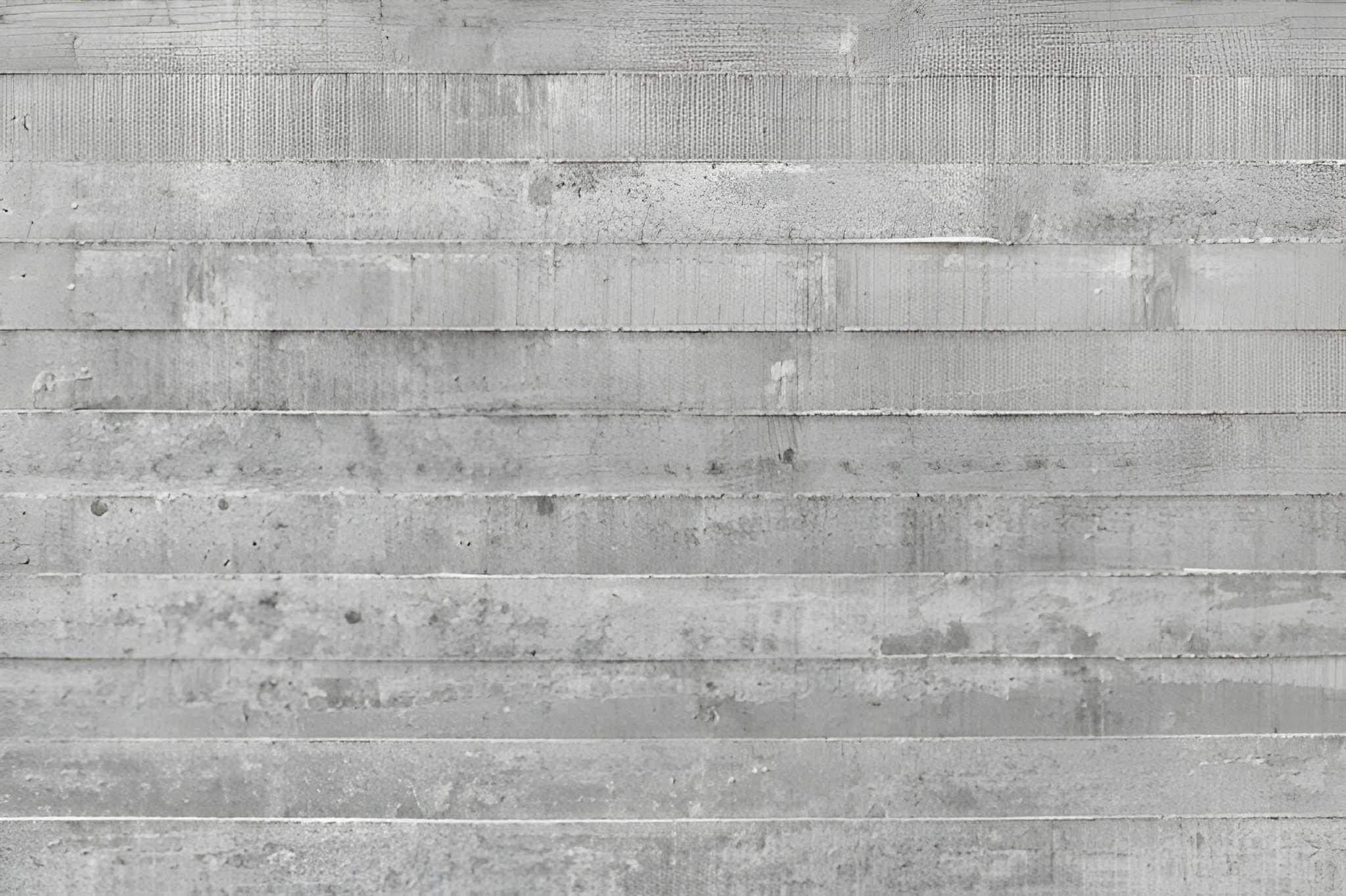
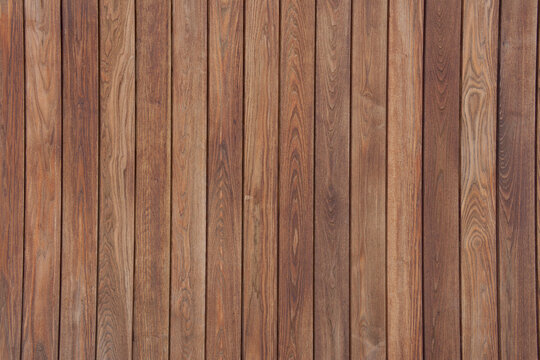
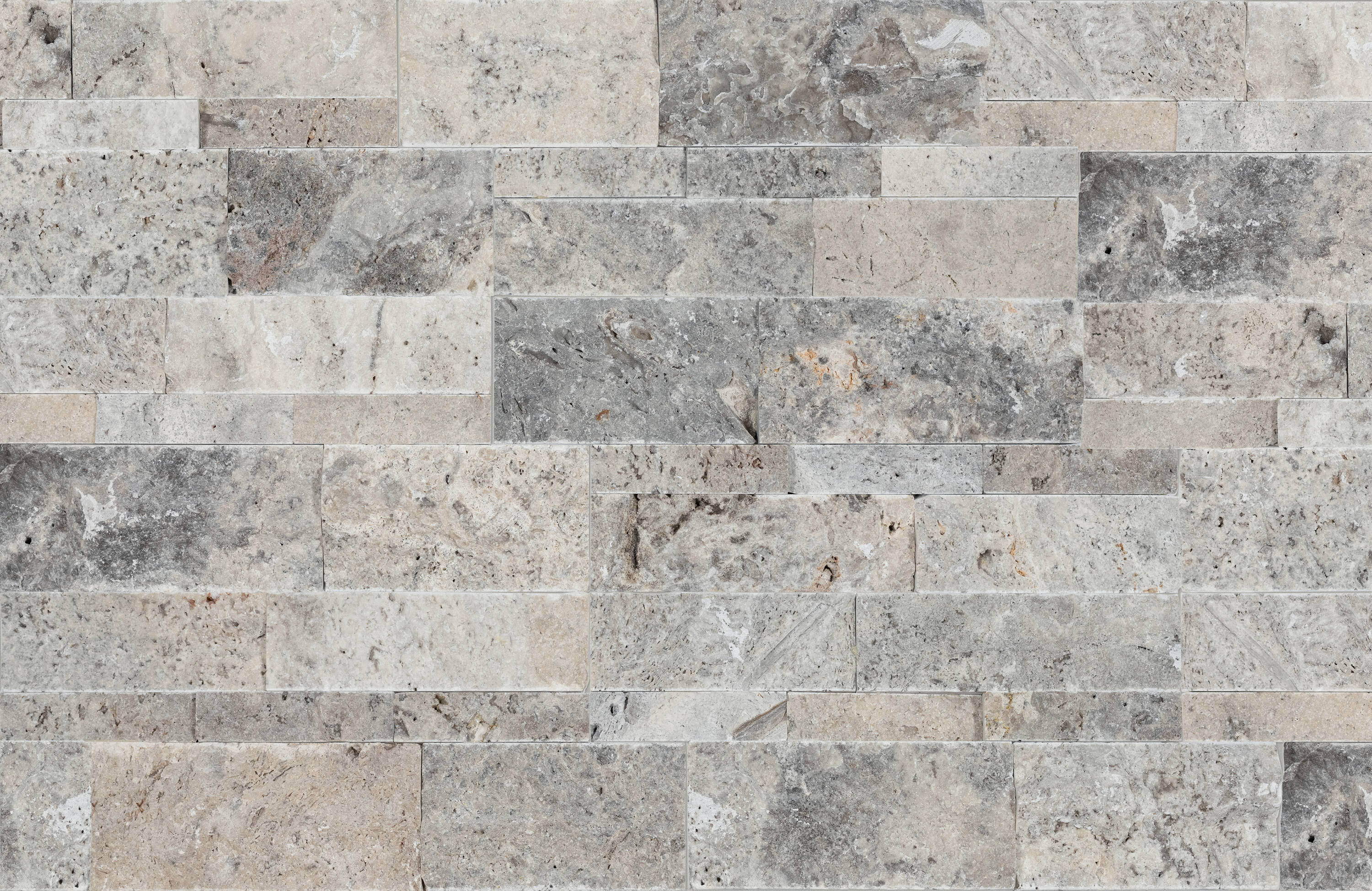
❌ Poor Material References
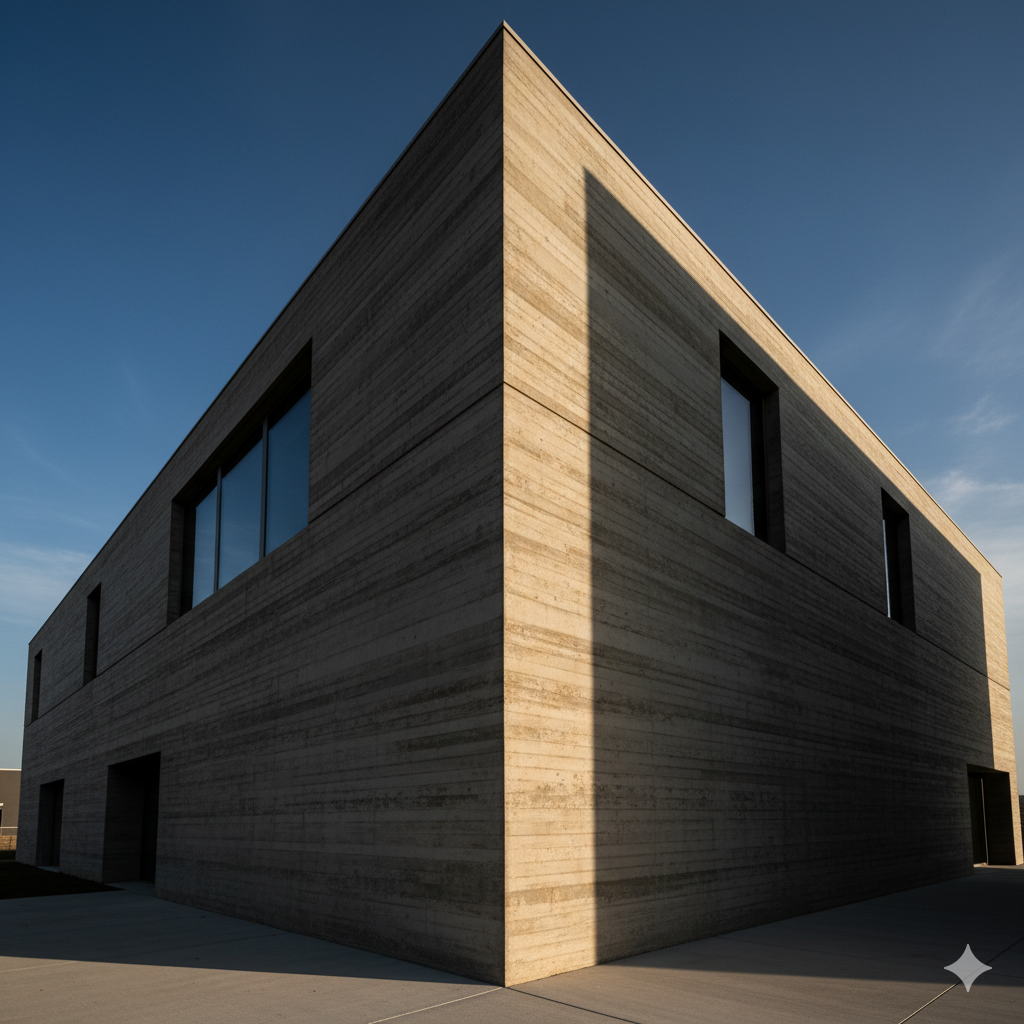
- Photos with perspective or vanishing points
- Strong shadows or uneven lighting
- Other objects visible in frame
- Angled or skewed views
Writing Effective Material Prompts
To successfully transfer a texture from an image to your model, follow this three-part structure:
[Material Definition] + [Reference Guidance] + [Application/Scale]
1. Material Definition
State clearly what the material is and its basic properties.
Example: "Rough board-formed concrete with a non-reflective, matte finish"
2. Reference Guidance
Tell the AI specifically what to extract from the reference image using this format:
"Use REF[X] as the primary visual guide for [specific attributes]"
Key attributes to specify:
- Texture pattern
- Color tone
- Surface characteristics
- Grain direction
- Visual variations
3. Application/Scale
Describe how the texture should be mapped onto the geometry.
Example: "Applied as large, continuous vertical panels with realistic scale"
Material Reference Examples
Example 1: Concrete Facade
Context: Texturing a facade using REF1 (flat photo of boarded concrete)
Prompt:
A facade of rough, board-formed concrete with a non-reflective, matte finish. Use REF1 as the primary visual guide for the texture of the wood grain imprints and its dark grey color tone. The pattern should be applied as large, continuous vertical panels with a realistic scale.
Example 2: Timber Floor
Context: Texturing a floor using REF2 (texture swatch of timber decking)
Prompt:
A natural, medium-brown timber deck with a matte finish. Use REF2 as the primary visual guide for the strong vertical grain pattern, the subtle color variation between individual planks, and the distinct seams. The material should be applied as long, continuous planks running parallel to the building's edge.
Using References for Styles (Custom Style)
When you want the entire render to have a specific artistic look, use reference images with the Custom Style option. learn more about styles
What Makes a Good Style Reference
Your reference should represent a pure artistic medium, not a competing design.
✅ Good Style References
- Images that clearly display a technique (e.g., a charcoal sketch, an impressionist painting, a film still with a distinct color grade)
- Pure artistic styles without competing architectural elements
Pending image
❌ Poor Style References
- Photos of famous buildings (the AI will be torn between keeping your building's shape and copying the reference building's shape)
- Images with mixed purposes (both style and geometry)
Pending image
Writing Effective Style Prompts
When selecting "Custom" in the Style dropdown, use this syntax structure to ensure the style is applied as a filter rather than a geometric change:
[Artistic Medium] + [Reference Extraction] + [Geometric Constraint]
1. Artistic Medium
Define the art style (e.g., "A watercolor painting," "A noir film still").
2. Reference Extraction
Tell the AI what artistic qualities to take from the image. Use the phrase: "Use REF[X] as the guide for..." followed by traits like brushwork, palette, or lighting.
3. Geometric Constraint
A mandatory safety sentence to prevent the AI from hallucinating new shapes.
Example:
Context: You want the whole image to look like a charcoal drawing and are using REF3 (a charcoal sketch).
Prompt:
A loose, expressive charcoal sketch. Use REF3 as the primary guide for the smudged shading technique, the rough paper texture, and the high-contrast black-and-white palette. Apply this artistic style as a surface treatment only; do not alter the original architectural geometry or perspective.
Technical Specifications
Recommended File Specifications
| Property | Recommendation |
|---|---|
| File format | JPG, PNG |
| File size | Under 2 MB (larger files slow upload) |
| Resolution | 1000-2000 pixels on longest side |
| Aspect ratio | Similar to your desired output |
Processing Note
Reference images are temporary
Reference images are processed in real-time and are not stored on our servers. They are used only for the current generation and immediately deleted after processing.
When to Skip Reference Images
You don't always need reference images:
- Quick concepts: When speed matters more than specific style
- Using presets: Preset prompts are optimized without references
- Exploring options: Try different prompts first, then add references to refine
Troubleshooting
Reference doesn't seem to affect output
- Ensure the reference matches your intended use (material vs style)
- For materials, verify it's a pure texture swatch without other elements
- For styles, ensure it's a pure artistic reference without competing geometry
- Try a higher-quality reference image
- Make your prompt more specific about what you want from the reference
Upload failing
- Check file size (keep under 2 MB)
- Ensure file is JPG or PNG format
- Check your internet connection